
Manage staff transport from request to closing documents
When requests arrive separately, schedules live in spreadsheets and documents are prepared by hand, dispatchers keep consolidating data. Cloudybus brings orders, vehicles, drivers, passengers and documents into one system.
What Cloudybus helps you do
Choose an area to explore the workflow.
Move data from an enquiry to an order with operator review
Dates, routes and passenger counts have to be copied from emails. Clarifications mean finding the original message and checking changes.
- Keep requests, corrections and discussions in one record.
- Connect a service to parse text and files.
- Check the result and create an order.
Less repeated entry. The original enquiry is available for comparison.
Enquiry
- Date
- 12.11.2026
- Time
- 07:00
- Passengers
- 40
Order
Prepare schedules using transport history
To choose a vehicle and driver, dispatchers check past trips, available resources and schedule changes.
- Get suggestions for dates up to seven days ahead.
- Use candidate scores and constraint checks.
- Review and adjust assignments.
Start with system suggestions and stay in control of decisions.
Generate documents from schedules without re-entering data
The vehicle, driver and orders are already assigned. Copying the same details into forms adds work and a risk of errors.
- Link orders to a vehicle and driver.
- Move and replace orders when plans change.
- Print waybill forms No. 6 and No. 3, charter order forms, registers and a log.
Use the same data for shift organisation and documents.
Scheduling
Printed form
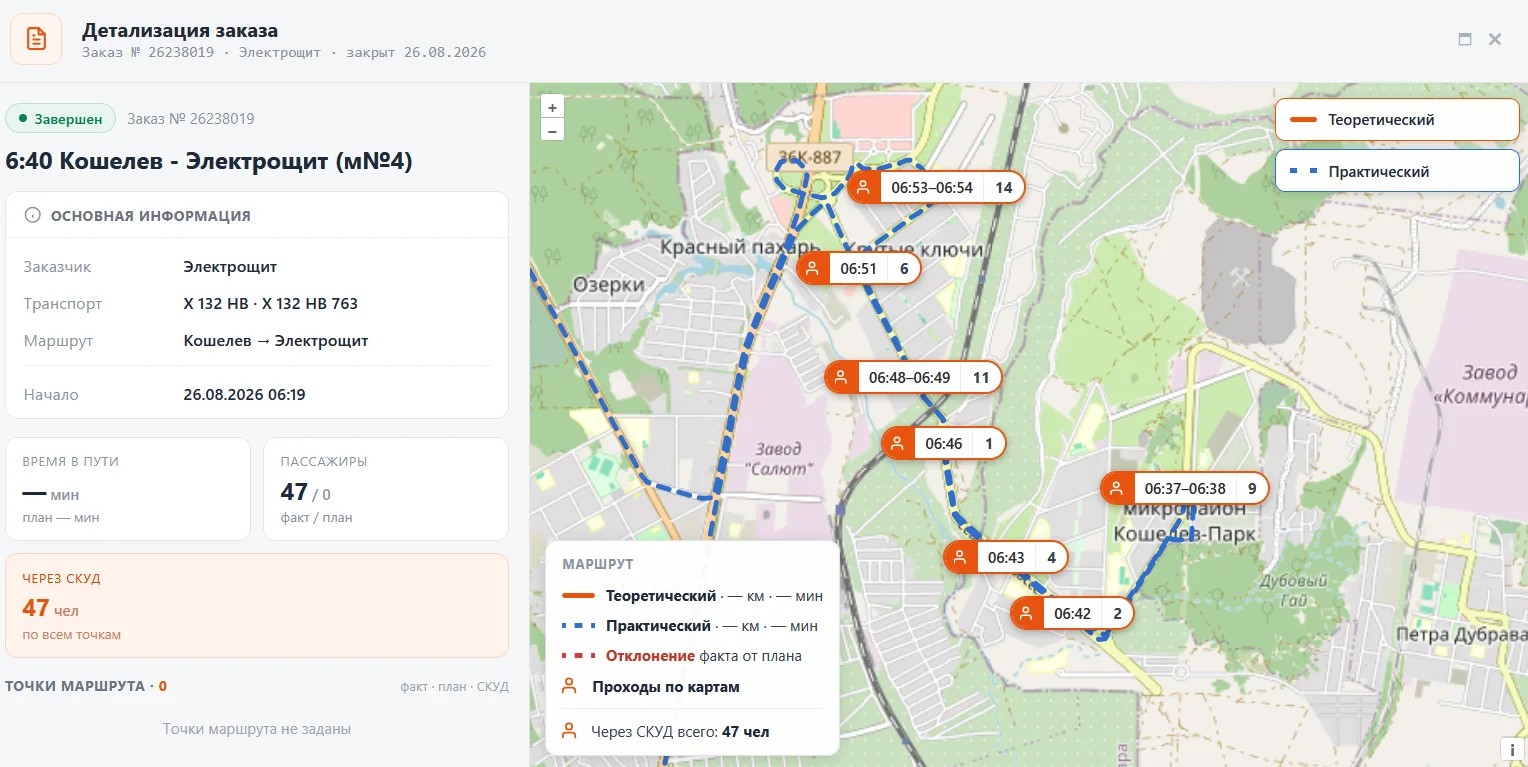
Check passenger counts against trip and boarding records
Planned and actual counts can differ. Reconciliation with customers needs boarding records linked to the relevant trip.
- Compare planned and actual counts with card records.
- Use QR boarding once connected.
- Review suspicious events; view boardings on a map when coordinates are available.
Discuss differences using recorded boarding events.
Compare order execution with vehicle locations
Dispatchers need to know which order a vehicle is serving and how recent its device data is.
- View vehicles and their orders.
- Monitor arrivals and available device statuses.
- Review tracks for a selected period.
Check trip information in one working context.
- GPS tracker
- Connected
- Driver terminal
- Connected
Give customers access to their requests, trips and documents
Schedule enquiries, passenger updates and document requests create ongoing exchanges with dispatchers.
- Requests, updates and discussions in the portal.
- Access to customers’ own trips and passenger data.
- Documents, reconciliation and customer acceptance of issued documents using a simple electronic signature.
Customers can access information; discussions stay with requests.
Please confirm the passenger count for the morning trip.
The next trip has 40 passengers. We updated the request.
Prepare reports from recorded transport data
At month end, teams consolidate trips, verify figures and prepare documents. Each difference requires a search for details.
- Generate reports on completed orders, vehicles and drivers.
- Export Trip Analysis to Excel and PDF with trip links.
- Prepare batches of acceptance documents and account reconciliation.
Move from totals to individual trip details.
| Order | Plan | Actual |
|---|---|---|
| 01 | 40 | 38 |
| 02 | 32 | 32 |
| 03 | 25 | 24 |
From introduction to daily team operations
Your processes
Review requests, schedules, records and documents.
Required connections
Define data, devices and access requirements.
Training and launch
Plan the team’s transition to the system.